InterCompany STO Process in S/4 HANA - SAP Community
Inter Company STO Process in S/4 HANA
Inter Company STO: (With Delivery and Billing) Materials are transported between the plants belonging to the different company codes in INTER COMPANY STO Where the supplying and receiving plants are in different company codes. Configurations to-do from SD
community.sap.com
Inter Company STO: (With Delivery and Billing)
Supplying, Receiving Plant가 서로 다른 경우 STO 설정
SD 쪽 세팅
- Create Sales organization
- Create Distribution Channel
- Create Check Division
- Create Customer Master
- Assign Sales Organization to Company Code
- Assign Distribution to Sales organization
- Assign Division to Sales organization
- Set up Sales Area
- Assign Sales organization – Distribution Channel – Plant
Create Sales organization:
Configuration:
SPRO –> IMG –> Enterprise Structure –> Definition –> Sales and Distribution –>
Define, Copy, delete, check sales organization
Transaction Code: OVX5

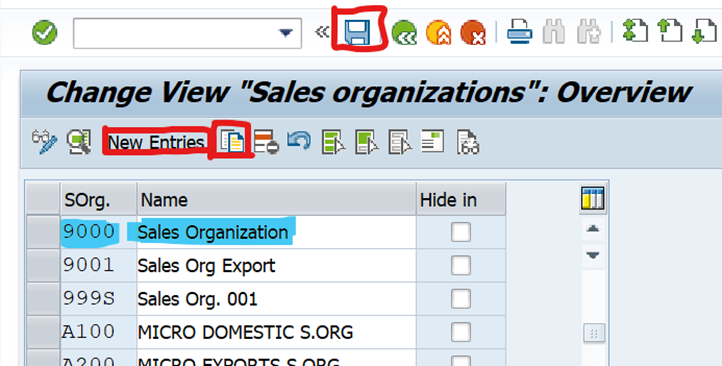
Currency와 참조판매조직 설정

참조 판매 조직의 주요 역할은 다음과 같습니다.
- 마스터 데이터 공유: 고객 마스터, 자재 마스터, 조건 데이터(가격, 할인 등)와 같은 마스터 데이터를 여러 판매 조직이 함께 사용할 수 있도록 합니다. 이를 통해 데이터 입력 및 유지보수 작업이 크게 줄어듭니다.
- 데이터 일관성 유지: 마스터 데이터가 한 곳에서 관리되므로, 여러 판매 조직에서 발생하는 데이터 불일치를 방지하고 일관된 비즈니스 프로세스를 유지할 수 있습니다.
- 통계 및 보고: 특정 참조 판매 조직을 기준으로 여러 판매 조직의 데이터를 통합하여 통계 및 보고를 생성하는 데 활용될 수 있습니다.
참조 판매 조직은 일반적으로 특정 유통 채널(Distribution Channel)과 제품군(Division)에 대한 참조 데이터도 함께 설정합니다.
이를 통해 판매 영역(Sales Area: 판매 조직, 유통 채널, 제품군의 조합) 전체에 걸쳐 마스터 데이터를 효율적으로 관리할 수 있습니다.
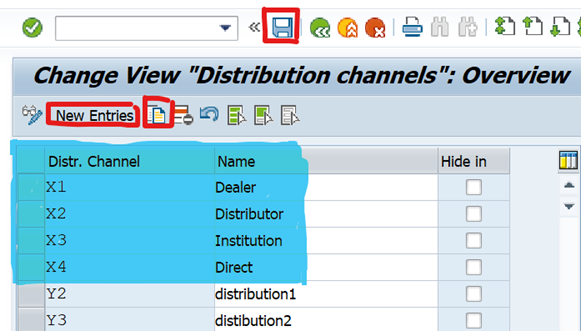
Create Distribution Channel:
Configuration:
SPRO –> IMG –> Enterprise Structure –> Definition –> Sales and Distribution –> Define, copy, delete, check distribution channel
Transaction Code: OVXI

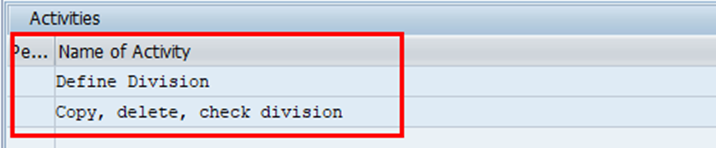
Create Division:
Configuration:
SPRO –> IMG –> Enterprise Structure –> Definition –> Logistics General –> Define, Copy, Delete, check division
Transaction Code: OVXB

Assign Sales Organization to Company Code:
Configuration:
SPRO –> IMG –> Enterprise Structure –> Assignment –> Sales organization –> Assign Sales organization to Company Code
Transaction Code: OVX3

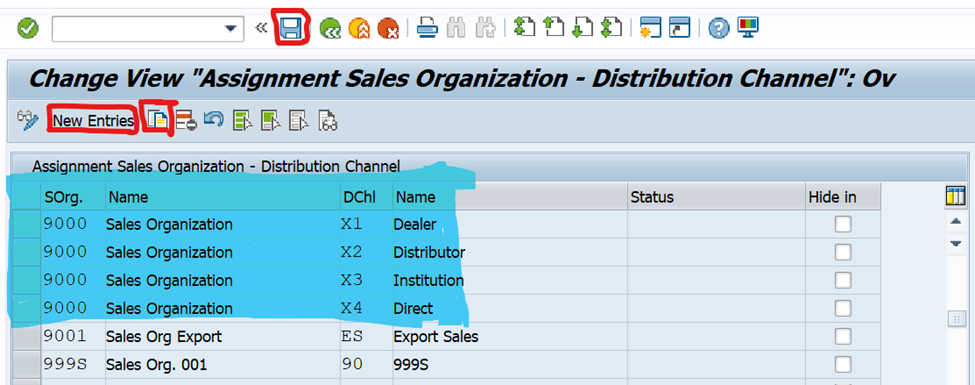
Assign DistributionChaneel to Sales organization:
Configuration:
SPRO –> IMG –> Enterprise Structure –> Assignment –> Sales and Distribution –> Assign distribution channel to sales organization
Transaction Code: OVXK
Assign Division to Sales organization:
Configuration:
SPRO –> IMG –> Enterprise Structure –> Assignment –> Sales and Distribution –> Assign Division to sales organization
Transaction Code: OVXA
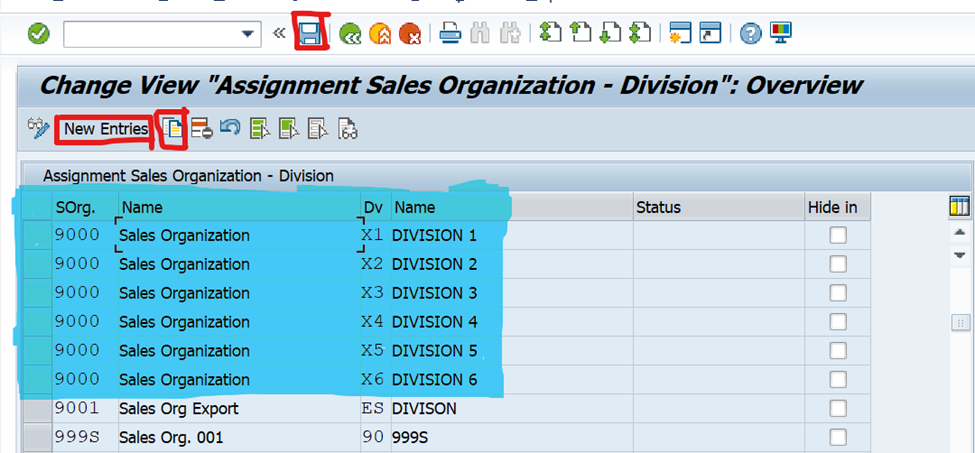
Set up Sales Area:
Configuration:
SPRO –> IMG –> Enterprise Structure –> Assignment –> Sales and Distribution –> Setup Sales Area
Transaction Code: OVXG
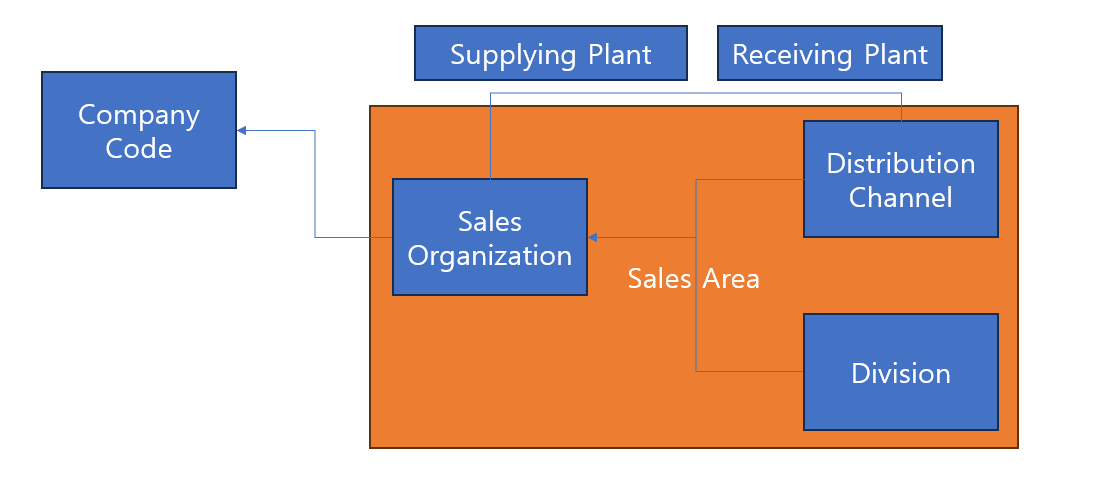
Sales Area를 정의하려면 먼저 Sales Organization에 Division이랑 Distribution Channel 할당 필요

Assign sales organization - distribution channel – plant:
Configuration:
SPRO –> IMG –> Enterprise Structure –> Assignment –> Sales and Distribution –> Assign sales organization –> Distribution channel –> Plant
Transaction Code: OVX6

BP 설정
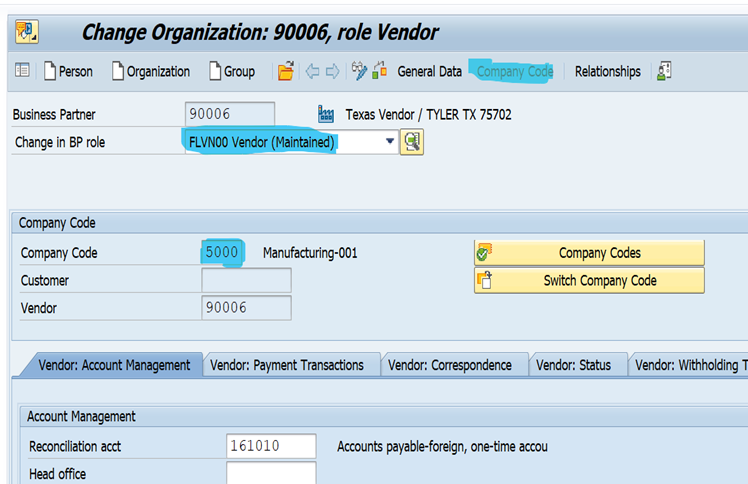
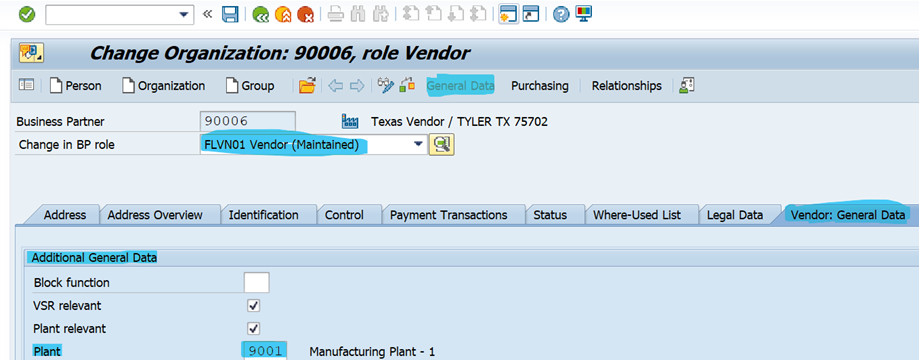
- Create the Supplier in Receiving Company Code and Receiving Purchasing Organization and assign Supplying Plant in the Vendor General Data. (i.e., For the Receiving Company Code, the Supplying Plant acts as a Supplier.)
- Create the Customer in the Supplying Company Code (i.e., the Customer acts as a Receiving Plant for the Supplying Company Code.)
For the Supplier
- FLVN00 : create the supplier in Receiving Company Code
- FLVN01 : create the Supplier in Receiving Company Code and assign the Supplying plant in the vendor General Data.

Supplying Company Code 설정
- Create the Customer in the Supplying Company Code of FLCU00.
- Create the Customer in Supplying Sales Organization, Distribution Channel and Division in FLCU01.

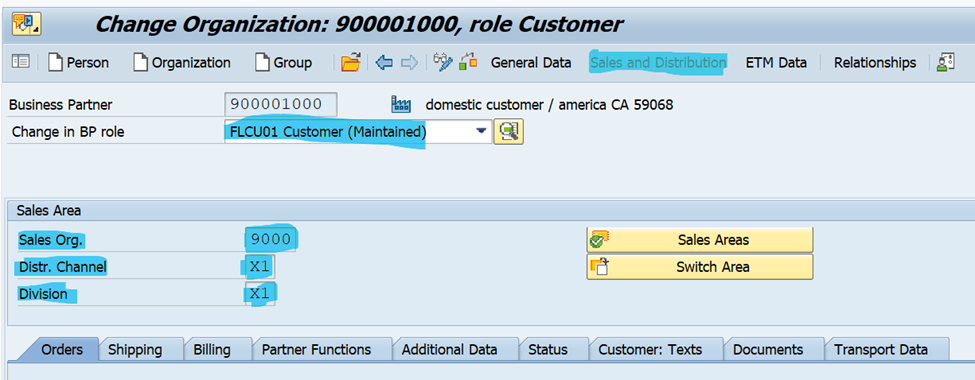
플랜트는 영업조직과 Distribution Channel과 매핑
MM 설정
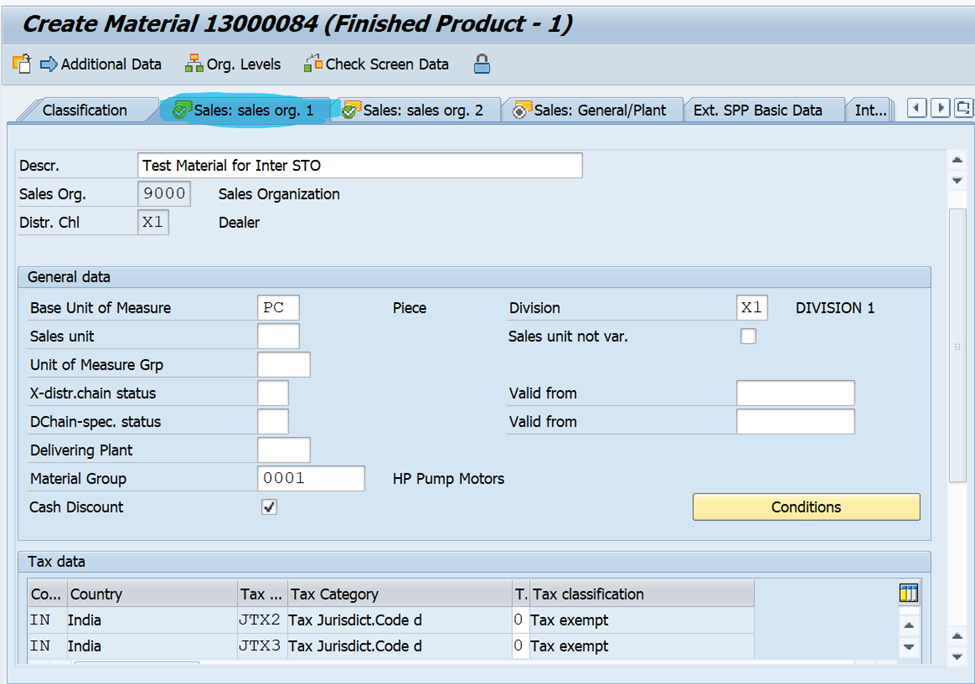
고객 / 공급업체 양쪽 플랜에 확장할 13000083 자재코드 생성
공급 플랜트 9001
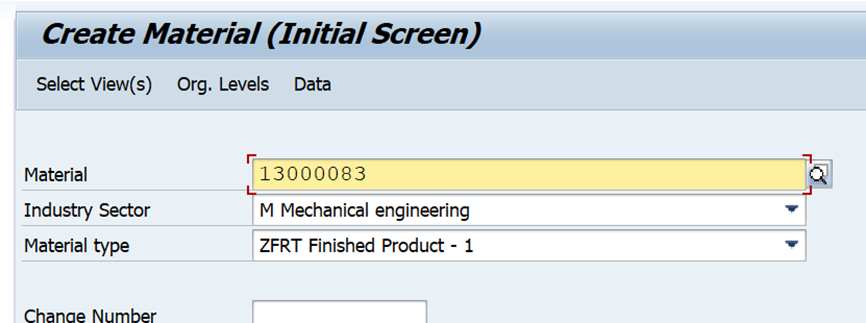
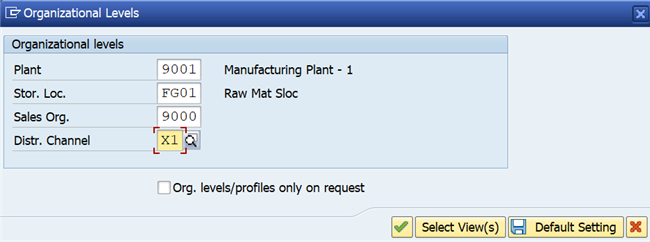
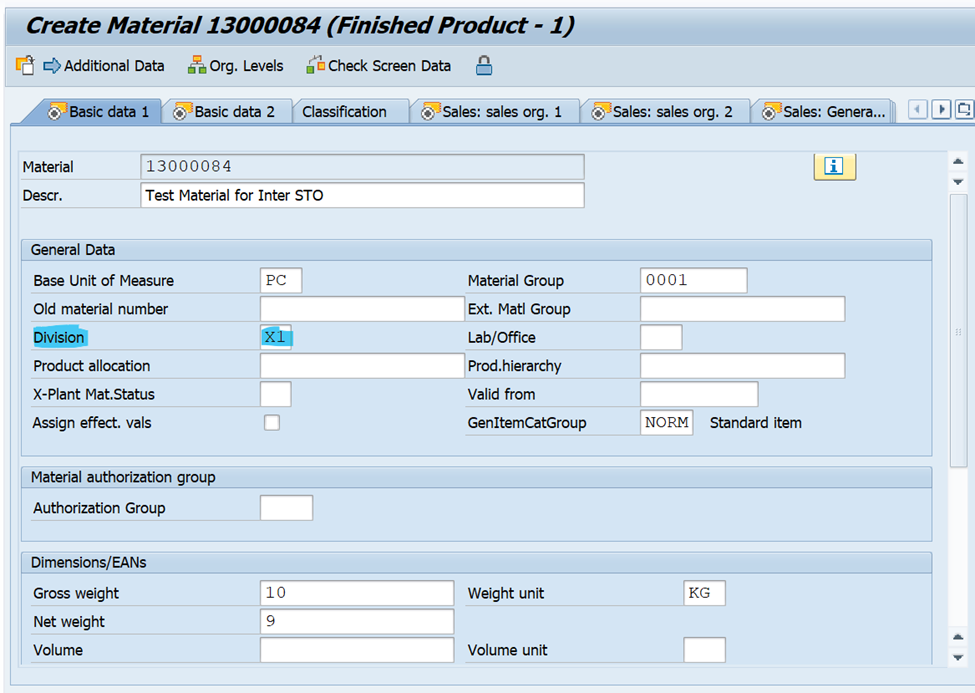
Basic Data에 Division X1 설정
구매조직 1뷰 Tax Classification
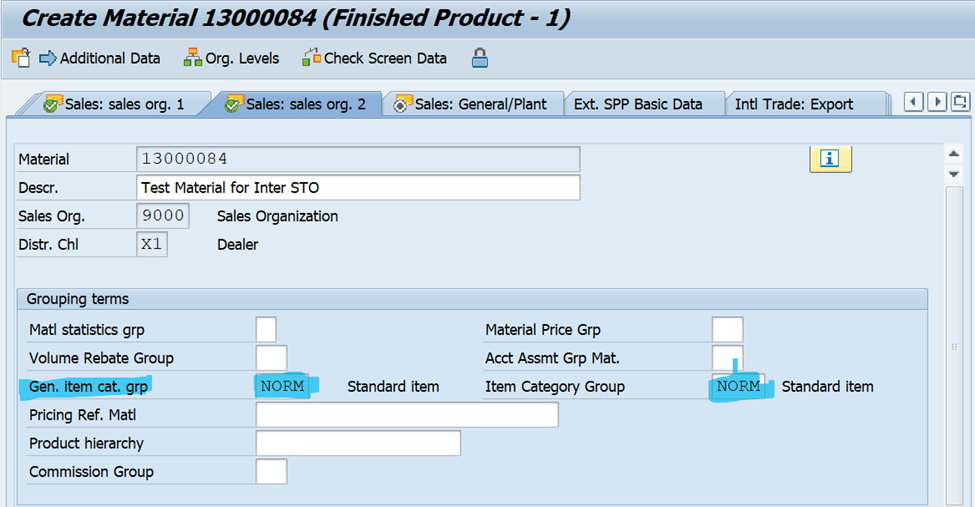
구매조직 2뷰 Maintain Item category group - NORM.
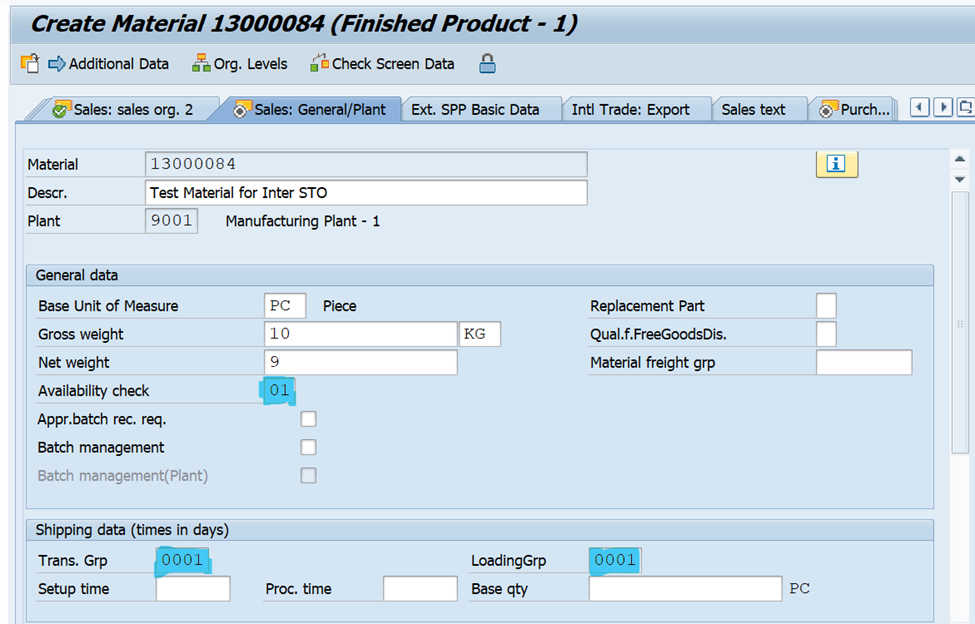
In Sales: General Data View
Maintain Availability Check – 01
Transportation Group – 0001
Loading Group – 0001
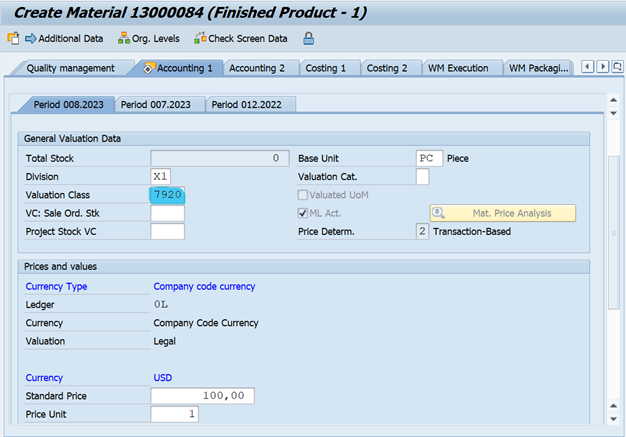
In Accounting 1 view Maintain the Valuation Class and Price.
Receiving Plant도 위와 같이 확장하기
구매 플랜트 9003
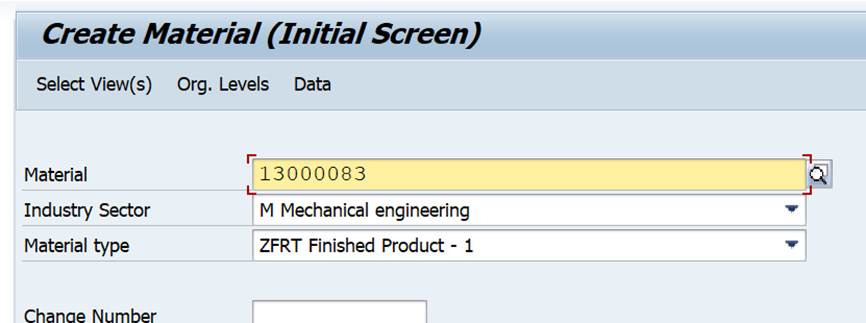
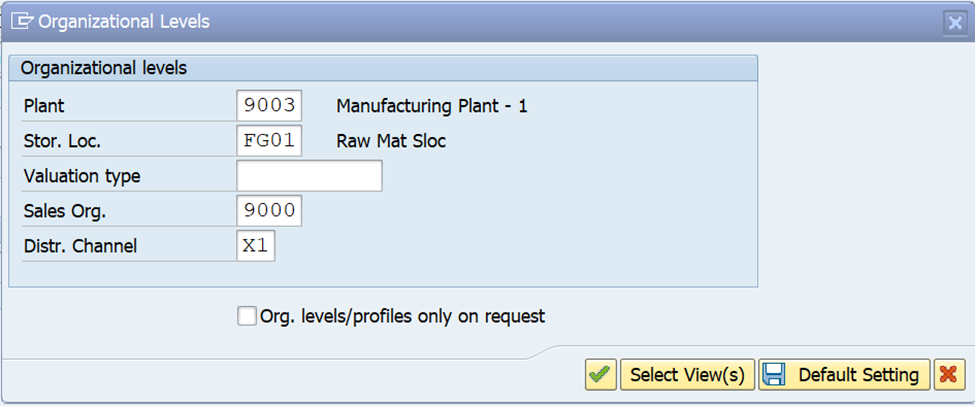
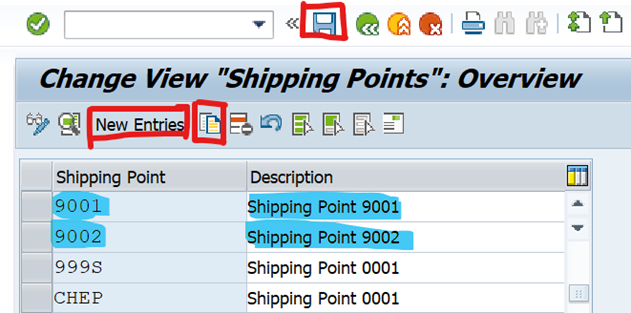
Shipping Point 정의
- 배송 지점은 독립적인 조직이며, 고객에게 제품을 배송하기 위해 필수임.
- 배송 지점에서는 배송을 처리하고 모니터링하며 상품 출고도 수행합니다.
Configuration:
SPRO –> IMG –> Enterprise Structure –> Definition – >Logistics Execution –> Define, Copy, Delete, Check shipping point

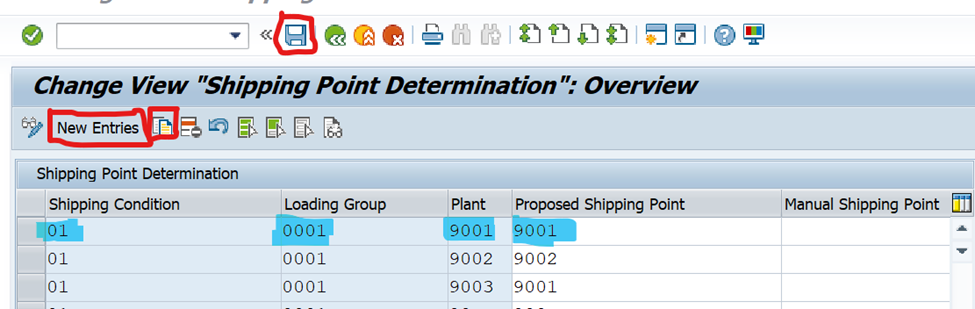
Shipping Point Determination:
Configuration:
SPRO –> IMG –> Logistics Execution –> Shipping –> Basic Shipping Functions –> Shipping Point and Goods Receiving Point Determination –> Assign Shipping Points
Transaction Code: OVL2
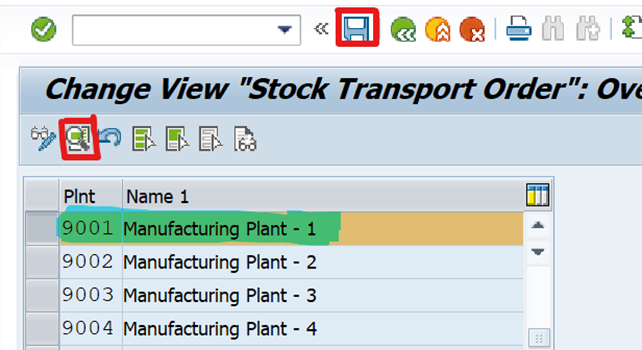
Define Shipping Data for Plants:
Configuration:
SPRO –> IMG –> Material Management –> Purchasing –> Purchase order –> Set up Stock Transport order –> Define Shipping Data for Plants
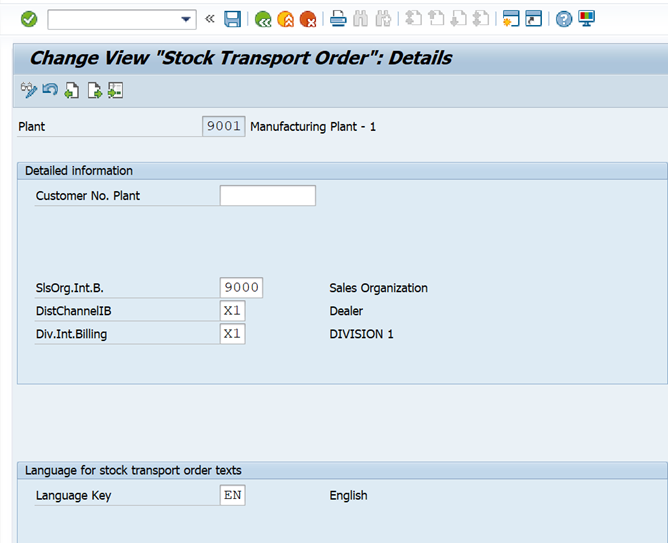
공급 플랜트 9001
Division 정보 입력
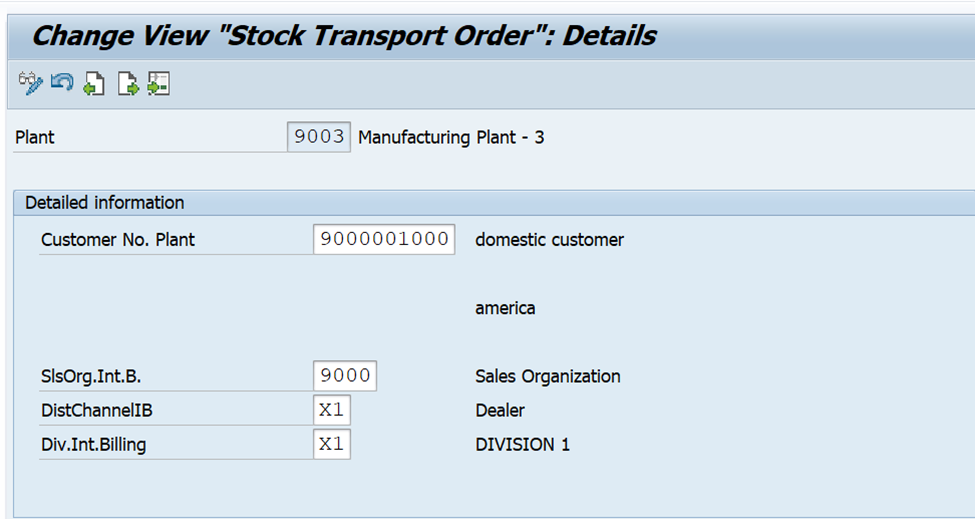
수령 플랜트 9003
고객번호 입력
Assign Delivery Type and Checking Rule:
Configuration:
SPRO –> IMG –> Material Management –> Purchasing –> Purchase order –> Set up Stock Transport order –> Assign Delivery Type and Checking Rule
For Inter Company STO, The Delivery Type should be NLCC.

Assign Document Type, One-Step Procedure, Under delivery Tolerance:
Configuration:
SPRO –> IMG –> Material Management –> Purchasing –> Purchase order –> Set up Stock Transport order –> Assign Document Type, One-Step Procedure, Under delivery Tolerance
Supplying Plant와 Receiving Plant 할당.
체크박스 체크하면 STO One Step.

여기까지가 설정은 끝
ME23N에서 구매오더 생성
구매오더는 수령 구매조직에서 생성해야 함.
수령 구매조직, 수령 회사코드, 수령 구매그룹 잘 넣으면 Shipping Tab이 표시됨
- 회사 간 STO 프로세스의 경우 문서 유형은 NB입니다.
- Delivery Type NLCC

위에서 한 세팅에 의해 2Step임
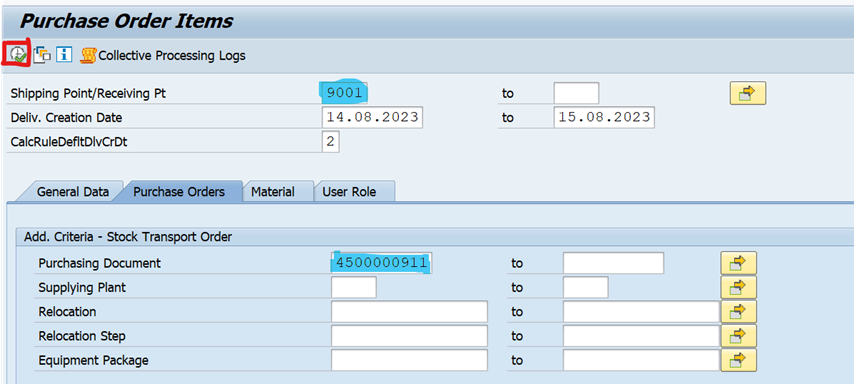
Create the Outbound Delivery in (VL01N, VL10B, VL10D)
N은 일반
B는 리턴
D는 STO
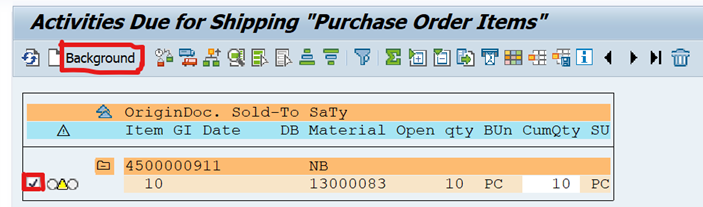
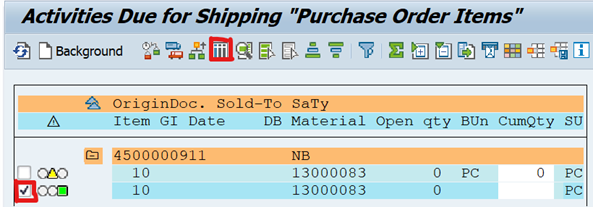
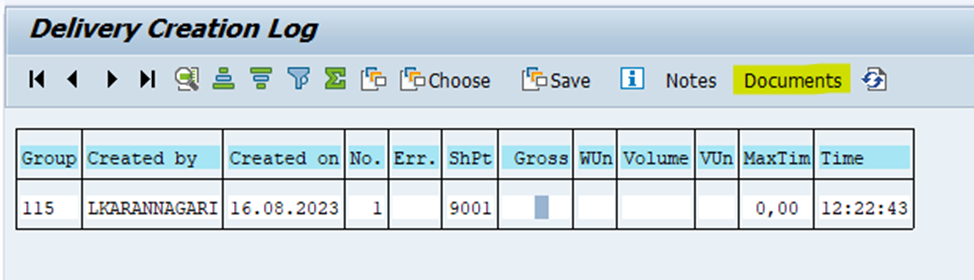

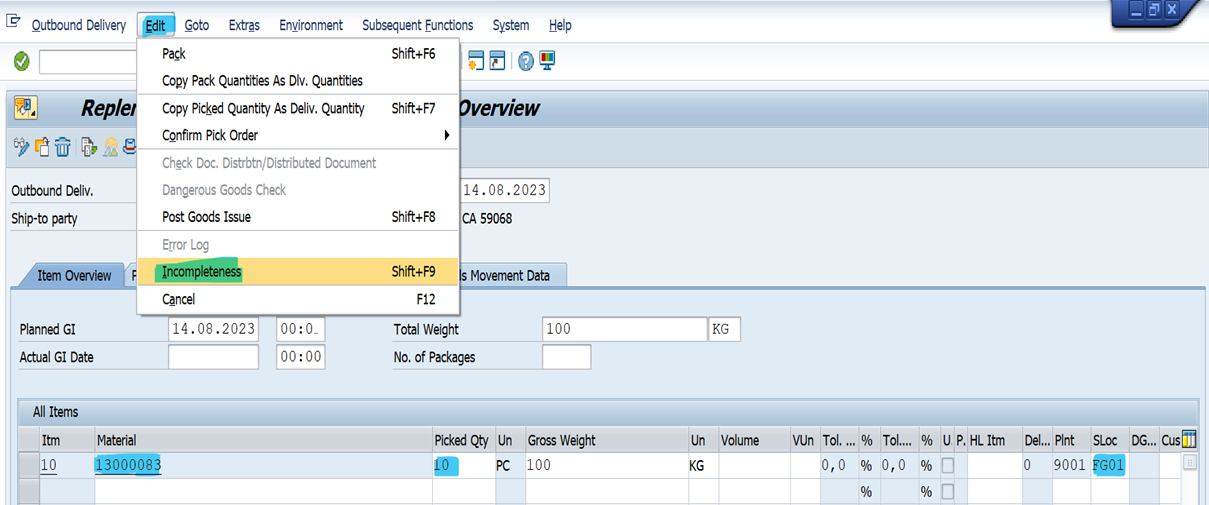
Next Change the Outbound Delivery Number (i.e., Post Goods Issue in VLO2N)
피킹 수량, 저장위치 입력 후 데이터 체크
데이터에 이상없으면 GI 하고 SAVE
ME21N 가서 PO history 구경

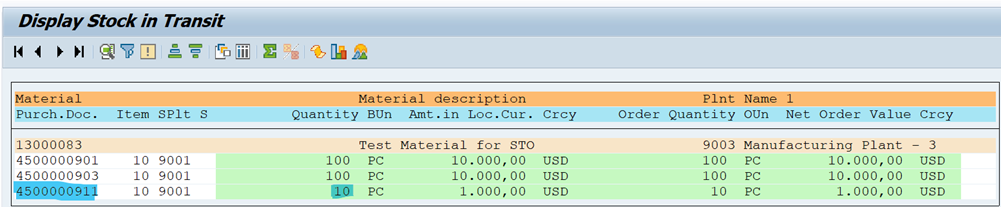
Check the Stock Transit in MB5T
MIGO에서 Receiving Plant에서 GR
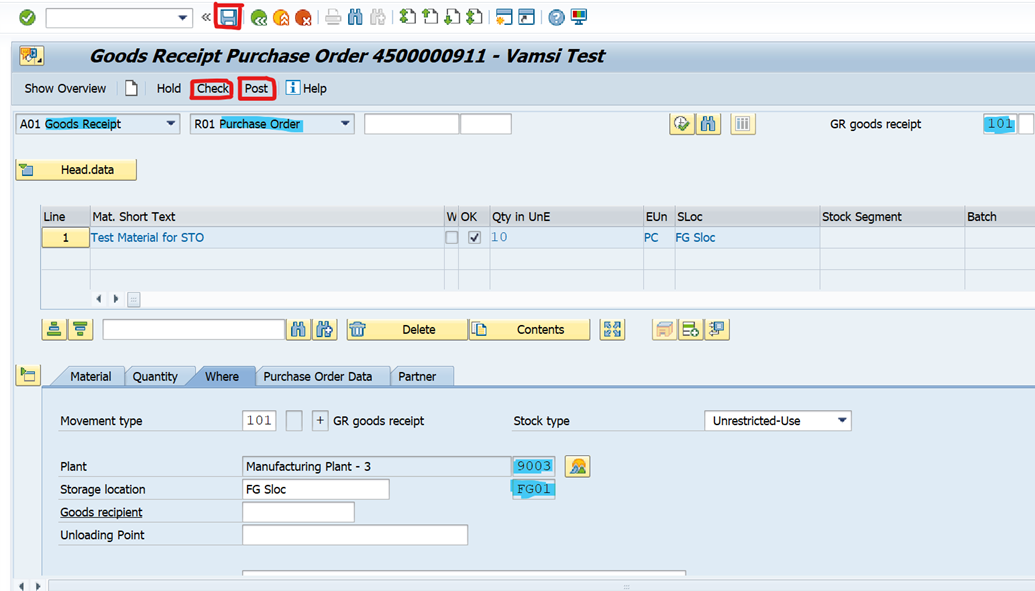
자재문서 177 포스팅
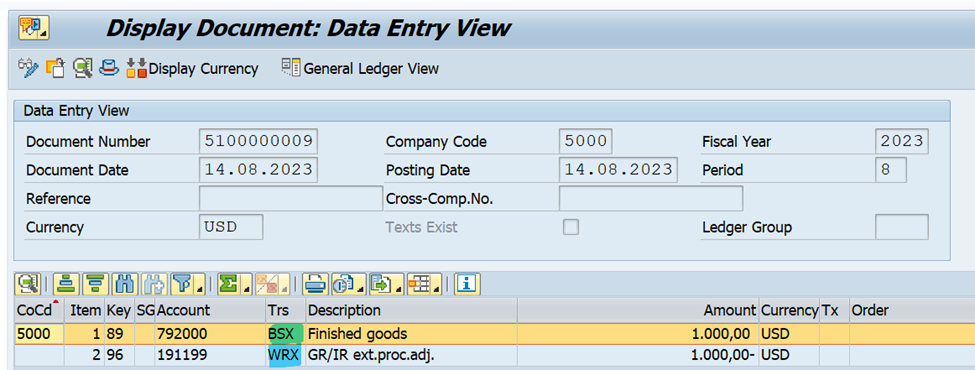
회계문서 확인
For Goods Receipt:
BSX –> DR
WRX –> CR
For Goods Issue:
BSX –> CR
GBB –> DR

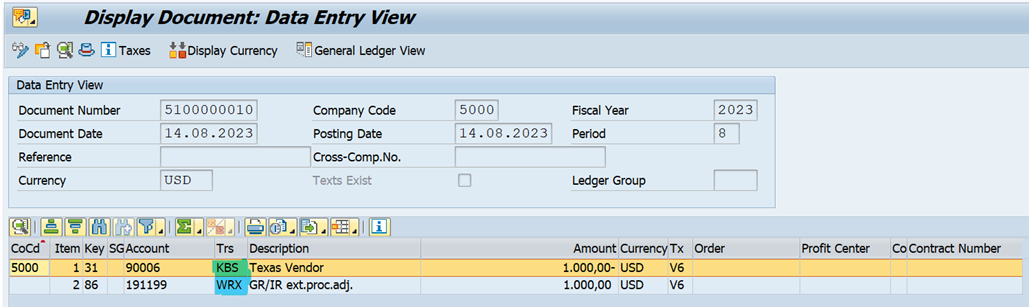
Invoice Verification in MIRO
IV는 수령 회사에서
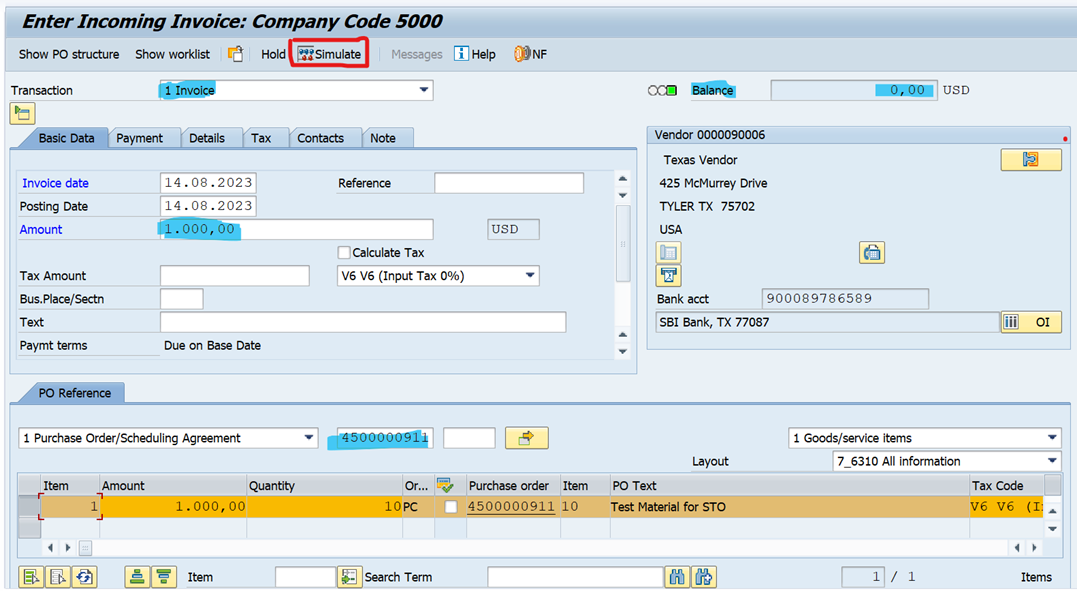
회계문서 확인
For Goods Receipt:
KBS –> CR
WRX –> DR
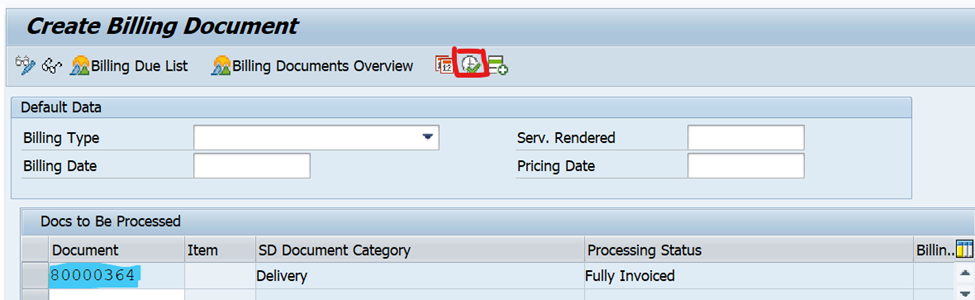
Billing in VF01
발송 배송 번호를 입력하고 '실행' 버튼을 클릭하세요.
데이터를 확인하고 '저장' 버튼을 클릭하면 청구 번호가 생성됩니다.
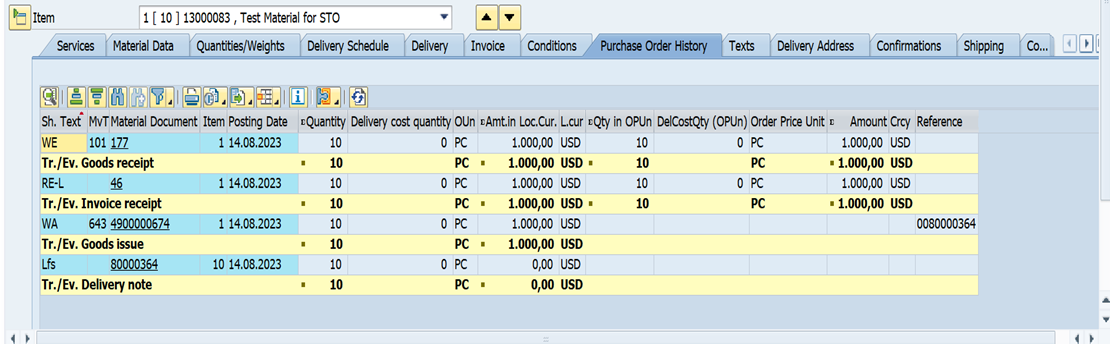
1 Step Process
아까 설정에서 체크박스 표시
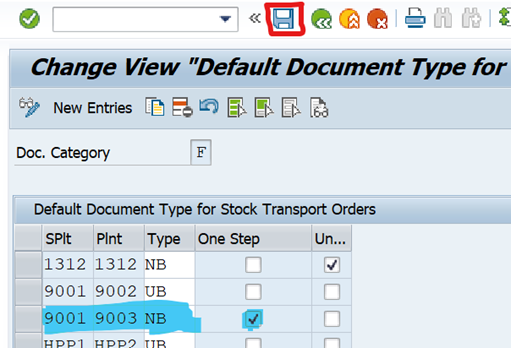
나머지는 동일함
차이점은 GI 하면 자동으로 GR됨.
'SAP' 카테고리의 다른 글
| [SAP] 메뉴에서 프로그램 타이틀이랑 티코드 같이 보여주기 (0) | 2025.09.01 |
|---|---|
| SAP : Show Keys within dropdown List (키값 설명 같이 보여주기) (0) | 2025.08.31 |
| SAP STO EKES 테이블의 VBELN_ST 필드 (0) | 2025.08.29 |
| Intra-Company STO Process Configuration (4) | 2025.08.28 |
| SAP MM-FI 통합의 개념적 이해 (1) | 2025.08.23 |